Creating high-quality images and videos can take hours, especially when you need editing skills, animation software, or expensive creative tools. unlucid ai brings several AI-powered creative features into one platform, allowing users to generate images, edit existing pictures, and turn images into short videos.
The platform is designed around simple workflows rather than complicated editing software. Users can create an image from a prompt, modify selected parts of an image, animate a picture, or experiment with preset video effects. This makes the platform useful for creators who want to turn an idea into visual content without a traditional editing workflow.
What Does Unlucid AI Do?
At its core, unlucid ai combines AI image generation, image editing, image-to-video creation, and video effects. The official platform currently highlights four major creative areas: Video AI, Effects AI, Image Generation, and Edit Tools.
Here is a quick overview:
| Feature | What It Does | Best For |
| AI Image Generator | Creates images from written prompts | Artwork, concepts, social content |
| Image Editing | Changes selected parts of an image | Removing or replacing objects |
| Video AI | Creates videos using prompts and optional images | Custom AI video creation |
| Effects AI | Applies preset motion effects | Short-form creative videos |
| Image References | Uses an uploaded image as creative guidance | Consistent visual concepts |
| Face Reference | Helps preserve facial characteristics | Character and portrait consistency |
| High-Resolution Upscale | Improves image detail and clarity | Sharper final images |
| Seed Control | Reuses a generation seed | Reproducing similar results |
The platform’s official tutorials confirm that its image-generation workflow includes multiple styles, image references, seed controls, and high-resolution upscaling.
How Does Unlucid AI Work?
unlucid ai uses a prompt-based workflow for many of its creative tools. Instead of manually building every visual element, you describe the desired result and select the appropriate generation or editing workflow.
For example, an image prompt can describe:
- The main subject
- Location or environment
- Clothing
- Lighting
- Camera angle
- Mood
- Artistic style
- Composition
The official image-prompting tutorial recommends including details such as subject, style, lighting, mood, and composition. It also provides camera-related prompt terms that can influence framing and perspective.
A Simple Workflow
- Open the appropriate AI tool.
- Enter a descriptive prompt or upload an image.
- Select available settings or styles.
- Generate the result.
- Review the output.
- Edit, upscale, animate, or regenerate it when necessary.
- Save the finished creation.
This workflow can reduce the amount of manual work needed for basic visual production.
Unlucid AI Image Generator
The image generator lets users create visual content from written descriptions. The official tutorial currently lists five styles: Realistic, Cartoon, 3D Render, Anime, and Pencil.
This gives users a starting point for different creative directions without requiring traditional drawing or design skills.
What Can You Create?
Depending on the prompt, users can develop concepts such as:
- Character portraits
- Product concepts
- Fantasy scenes
- Digital artwork
- Social media visuals
- Story concepts
- Background images
- Stylized illustrations
- Concept art
The quality of the result depends heavily on the prompt and source material. Clear descriptions generally give the AI more information about the desired composition.
Image Reference Feature
One useful option is Image Reference. Users can upload an image that helps guide the generation process and maintain visual consistency with an existing concept.
This can be useful when developing several visuals around a similar character, style, or composition.
Unlucid AI Image Editing Tools
Not every project needs a completely new image. Sometimes the original picture is good, but one element needs to change.
The official image-editing workflow provides several modes:
- Remove Objects
- Add or Replace Objects
- Change Clothing
Users select the area they want to modify and describe the desired change. The platform then applies the requested edit while attempting to keep the surrounding image consistent.
Remove Objects
The Remove Objects mode can erase unwanted elements from an image and fill the selected area using AI-generated content.
For example, a creator might remove:
- An unwanted person
- A distracting object
- An unnecessary background element
- A visual obstruction
Add or Replace Objects
This mode allows users to introduce a new object or replace an existing element.
A simple workflow could involve selecting a car and asking the AI to replace it with another object. The official tutorial demonstrates this type of object replacement.
Change Clothing
The clothing-editing function allows users to modify an outfit while keeping the broader image composition intact. This can help creators test different visual concepts without producing a completely new image.
Unlucid AI Video Generator
One of the platform’s major capabilities is AI video creation. The official site describes a workflow that can turn images into short videos, while its newer Video AI feature also supports custom prompting and optional starting images.
This gives creators two useful approaches.
Image-to-Video
Start with an existing image and animate it.
This approach works well when you already have a character, illustration, photograph, or AI-generated picture and want to introduce movement.
Prompt-Based Video Creation
The newer Video AI workflow allows users to describe the scene and motion through a text prompt. An optional starting image can also guide the opening frame.
This is useful for creators who want more control over the idea rather than simply applying a preset animation.
Unlucid AI Effects
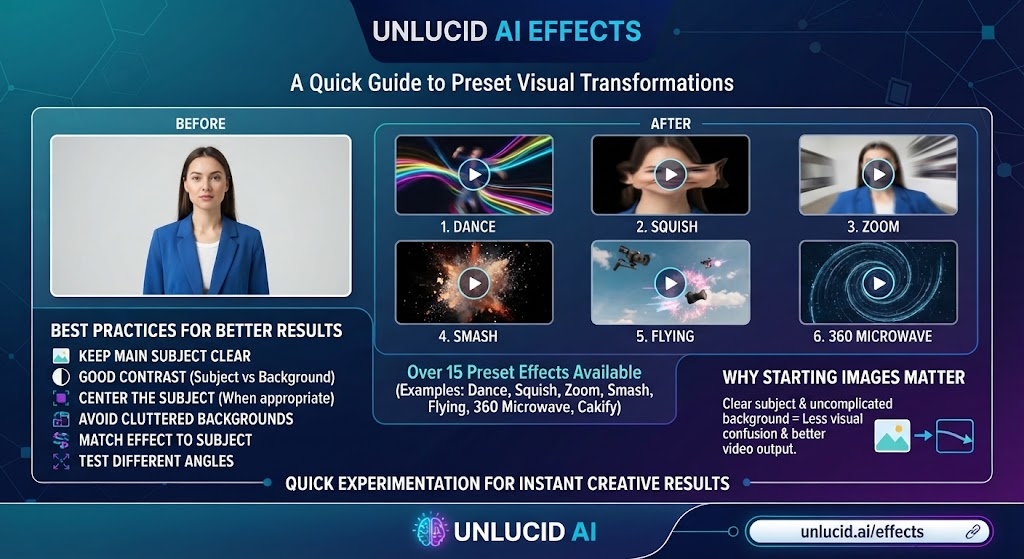
Effects AI focuses on preset visual transformations. The official platform currently promotes more than 15 video effects, while its tutorial library documents effects such as Dance, Squish, Zoom, Smash, Flying, 360 Microwave, Cakify, and others.
These effects are designed for quick experimentation.
For better results, the official guidance recommends:
- Keeping the main subject clear.
- Using good contrast between the subject and background.
- Centering the subject when appropriate.
- Avoiding cluttered backgrounds.
- Matching the effect to the subject.
- Testing different camera angles.
Why Starting Images Matter
The input image can significantly affect an AI video effect. A clear subject with an uncomplicated background gives the system less visual confusion to resolve.
The official examples also show that different effects work better with particular image compositions.
Unlucid AI Styles and Creative Controls
A major advantage of unlucid ai is the range of creative controls available across its tools.
For image generation, the official tutorial identifies five style choices:
| Style | Suitable Use |
| Realistic | Photographic-looking concepts |
| Cartoon | Playful illustrations |
| 3D Render | Digital product and 3D-style scenes |
| Anime | Anime-inspired artwork |
| Pencil | Sketch-style visuals |
The platform also provides a seed option. A seed can help users reproduce a generation setup and experiment with similar results rather than starting from completely different randomness each time.
How to Write Better Unlucid AI Prompts
Good prompts can make a major difference. A short phrase may communicate the general idea, but a detailed prompt gives the generation system more information to work with.
A useful prompt structure is:
Subject + environment + composition + lighting + style + camera perspective + mood
Example Prompt Structure
Instead of:
A woman in a city.
Try:
A young woman walking through a futuristic city street at night, neon signs reflecting on wet pavement, cinematic lighting, medium shot, realistic photography, shallow depth of field, atmospheric mood.
The second version describes more visual information.
Useful Prompt Details
Consider specifying:
- Subject: Who or what appears?
- Location: Where is the scene?
- Lighting: Bright, soft, cinematic, neon, natural?
- Camera: Close-up, medium shot, wide angle, overhead?
- Composition: Centered, symmetrical, side view?
- Style: Realistic, anime, cartoon, pencil?
- Mood: Calm, dramatic, energetic, mysterious?
The official prompting tutorial specifically identifies camera terms such as extreme close-up, close-up, medium shot, long shot, full body shot, side view, overhead, wide angle, and POV as useful prompt concepts.
Unlucid AI Pricing and Gems
Pricing is an important part of evaluating any AI creative platform. The current official Gems page states that users can claim free gems daily and purchase additional gem bundles.
The currently displayed bundles include:
| Gem Package | Listed Price | Maximum Images* | Maximum Edits* | Maximum Videos* |
| 120 Gems | $8.99 | 120 | 60 | 12 |
| 450 Gems | $29.99 | 450 | 225 | 45 |
| 1,250 Gems | $59.99 | 1,250 | 625 | 125 |
*The official page presents these as maximum quantities associated with the listed gem bundles; actual consumption depends on the tool and generation.
The official pricing page also states that the bundles include no watermark. Because pricing and generation costs can change, users should check the live pricing page before purchasing.
Is Unlucid AI Free?
Yes, the official platform currently provides free daily gems, but its current official pricing page also offers paid gem bundles.
That distinction matters because different websites currently make broader claims about unlimited or completely free access. For accurate information, users should rely on the official unlucid.ai platform and its current pricing information rather than assuming every third-party claim applies to the main service.
The current official pricing model is based on gems, making it important to check the amount of gems required by the specific tool before starting a larger generation project.
Who Can Use Unlucid AI?
The platform is aimed at people who want to create visual content without needing advanced video or image-editing experience.
Potential users include:
- Content creators
- Social media managers
- Digital artists
- Bloggers
- Video creators
- Designers
- Marketing teams
- Concept artists
- Hobbyists
- People experimenting with generative AI
The official About page specifically presents the platform as suitable for users without technical or video-editing experience.
Practical Uses for Unlucid AI
unlucid ai can fit into several creative workflows.
Social Media Content
Creators can generate images, animate still visuals, and experiment with short video effects for social platforms.
Concept Development
Writers, designers, and artists can use image generation to explore characters, environments, products, and visual directions.
Photo Editing
The editing tools can help remove objects, replace elements, or experiment with clothing changes without manually editing every pixel.
Short Video Creation
Creators can turn still images into animated clips or build custom videos using the Video AI workflow.
Visual Experiments
Effects AI provides a simple way to test creative concepts without learning complex motion-editing software.
How to Get Better Results With Unlucid AI
The easiest way to improve results is to treat the process as experimentation rather than expecting the first generation to be perfect.
1. Start With a Clear Prompt
Describe the subject and desired visual result before adding unnecessary details.
2. Use Strong Source Images
For image-to-video effects, choose images with a clear subject and an uncluttered background. This follows the platform’s own recommendations.
3. Experiment With Camera Angles
Try different perspectives when an effect does not produce the expected visual movement.
4. Use Image References
When consistency matters, an image reference can help guide new generations.
5. Upscale When Needed
The official image tutorial recommends high-resolution upscaling for improving facial details and correcting small visual issues.
6. Save Useful Seeds
If a particular generation has a visual direction worth exploring, keeping its seed can make further experimentation easier.
Unlucid AI vs Traditional Editing
Traditional image and video editing gives users precise manual control. AI creation tools take a different approach by allowing users to describe or select changes and let the system generate the visual result.
| Area | Unlucid AI | Traditional Editing |
| Learning curve | Generally simpler for AI workflows | Can require software training |
| Image creation | Prompt-based | Manual design or stock assets |
| Object removal | AI-assisted | Often manual |
| Image animation | AI-generated | Usually requires keyframes or templates |
| Creative experimentation | Fast iteration | More manual |
| Fine manual control | Depends on the tool | Usually extensive |
| Best use | Rapid AI-assisted creation | Detailed manual production |
Neither approach solves every creative task. AI tools can speed up experimentation, while traditional editing remains valuable when precise control over every element is required.
Is Unlucid AI Easy to Use?
For its supported workflows, the platform is designed to reduce technical complexity. The official About page states that users can generate videos from images and make image edits without traditional video-editing or image-editing experience.
The learning curve still depends on what you want to create. Basic image generation can be straightforward, while achieving consistent characters, specific compositions, or polished video movement may require several prompt iterations.
What Are the Main Limitations?
AI generation can save time, but it does not remove the need for review.
Users should watch for:
- Unexpected image details
- Inconsistent hands or facial features
- Unwanted changes outside the selected editing area
- Motion that does not match the original image
- Results that differ from the prompt
- Generation costs when using paid gems
- Changing feature availability
The platform itself recommends high-resolution upscaling when users encounter issues such as unusual faces or hands in generated images.
For professional work, always inspect the final output before publishing.
Is Unlucid AI Worth Exploring?
Whether unlucid ai fits your workflow depends on what you want to create.
It can be particularly useful if you want one platform for AI image creation, image editing, image-to-video workflows, and creative effects. Its official tutorials also provide practical guidance for prompts, image references, editing, and video effects, which can help new users learn the platform faster.
The current gem-based pricing model is another factor to consider. Users who create frequently should compare the number of generations they expect with the available gem bundles before committing to a larger purchase.
Frequently Asked Questions
Unlucid AI is an AI creative platform for generating images, editing images, creating videos, and applying video effects. Its official website currently promotes Image Generation, Edit Tools, Video AI, and Effects AI.
Unlucid AI currently offers free daily gems, along with paid gem bundles. The exact pricing and available packages are listed on its official Gems page and can change over time.
Yes. The platform supports AI video workflows, including custom video generation and image-based animation. Its official tutorials describe Video AI as a tool for creating videos from text prompts with optional starting images.
Yes. Its official editing tools include removing objects, adding or replacing objects, and changing clothing.
Yes. The image-generation workflow supports image references, which can help guide the appearance and consistency of generated visuals.
Use detailed prompts, clear source images, suitable camera descriptions, image references, and high-resolution upscaling when necessary. The official tutorials recommend clear subjects, simple backgrounds, appropriate framing, and careful effect selection.
Conclusion
unlucid ai brings image generation, AI editing, video creation, and creative effects into a single workflow. Its official tools are built around straightforward prompts, image references, editing selections, preset effects, and AI-assisted animation.
For the best experience, start with a simple project, use a clear prompt or source image, and review each result before moving to more complex creations. Also check the official Gems page for current costs because the platform’s pricing and available features can change.